
Microsoft Copilot uses generative AI to provide in-app help and guidance in Dynamics 365 finance and operations apps. It uses public documentation to offer precise assistance and streamline navigation. The conversational experience is powered by a Microsoft Copilot Studio bot in the Dataverse environment linked to your D365 FO environment.
Note :I have used 10.0.39 (10.0.1860.56) product version for the below blog. For environments on version 10.0.40 sidecar user experience for Copilot in finance and operations apps is always enabled.
Prerequisites for this feature
- Requires version 10.0.38 or later of finance and operations apps.
- Copilot solutions automatically deployed in the associated Dataverse environment.
- Proactive quality updates (PQUs) for versions 10.0.39 and 10.0.38 are available.
Step 1
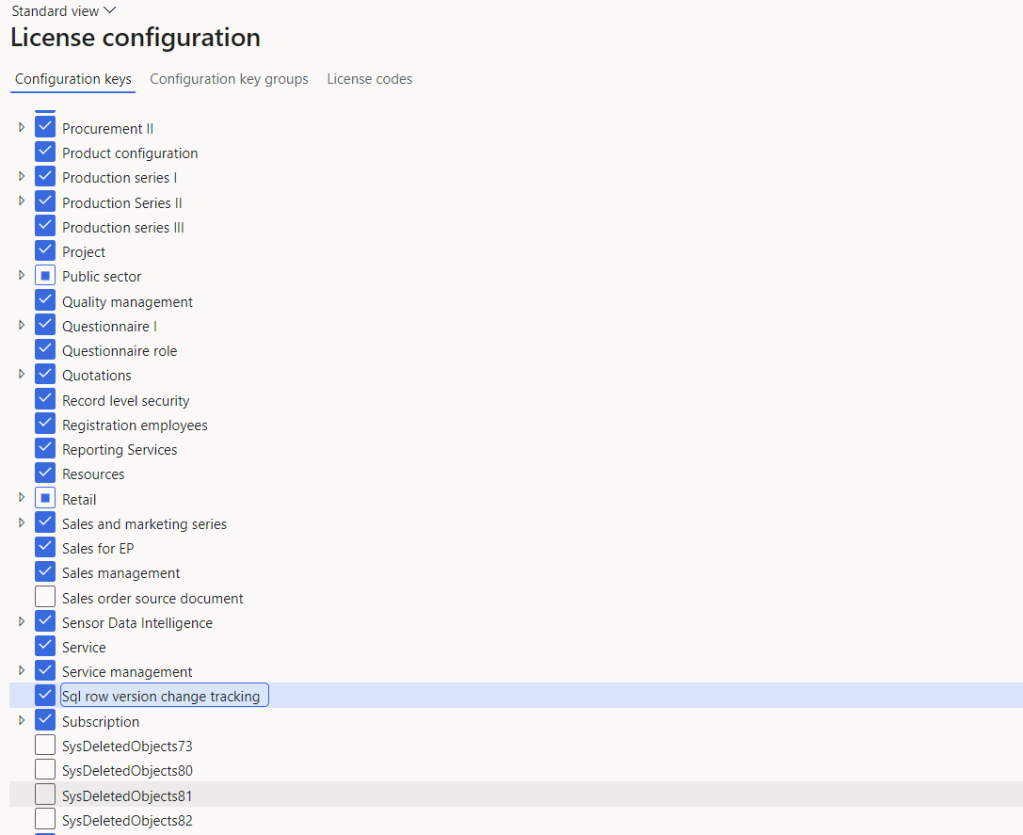
Make sure under license configuration in D365 FO SQL row version change tracking is enabled as shown below.
Step 2
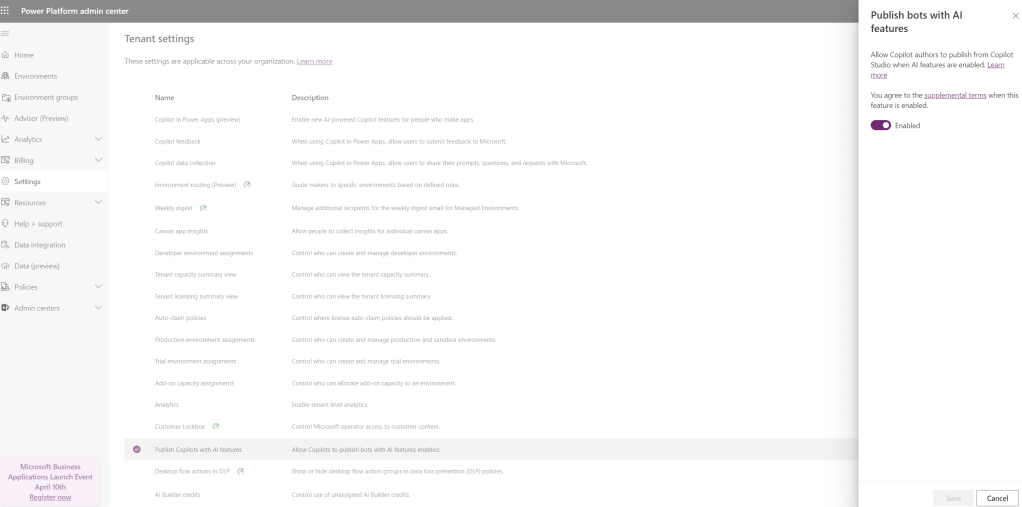
Make sure Publish with AI features are option is enabled from the Power Platform admin center > Settings (Under Tenant settings).
Step 3
Install copilot in Microsoft Dynamics 365 Supply Chain Management in the environment.
Copilot in Microsoft Dynamics 365 Supply Chain Management enhances finance and operations apps with AI capabilities, enhancing user experience and functionality.
- It is embedded in the application, providing intelligent capabilities for understanding and reacting to changes in confirmed purchase orders.
- Copilot also functions as a sidecar, providing conversational support and a natural language chat experience, enhancing user interaction with application functionality and data.
Use this link to directly access the Copilot in Microsoft D365 SCM app.

Enter/copy the email which you are using and then click next.
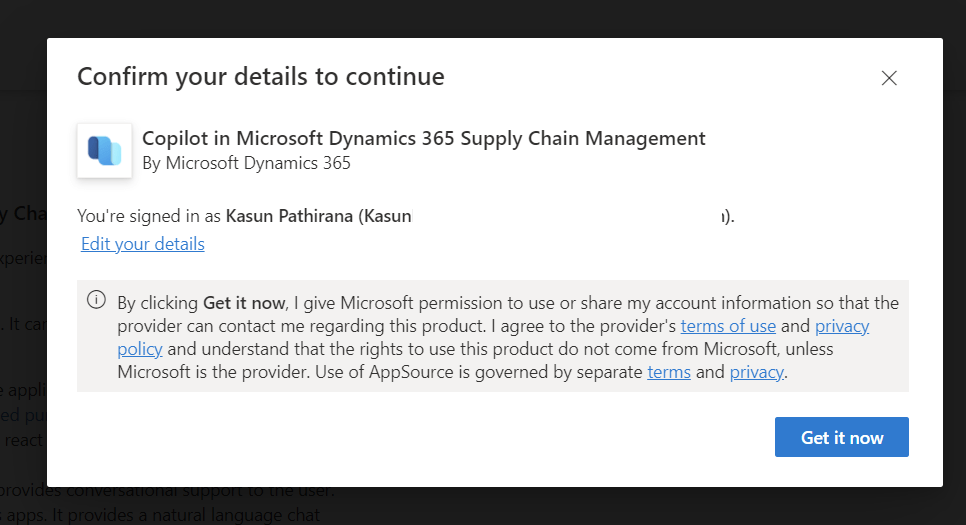
Select the environment which you are enabling and accept the terms and privacy statement check boxes as shown below and click Install button.
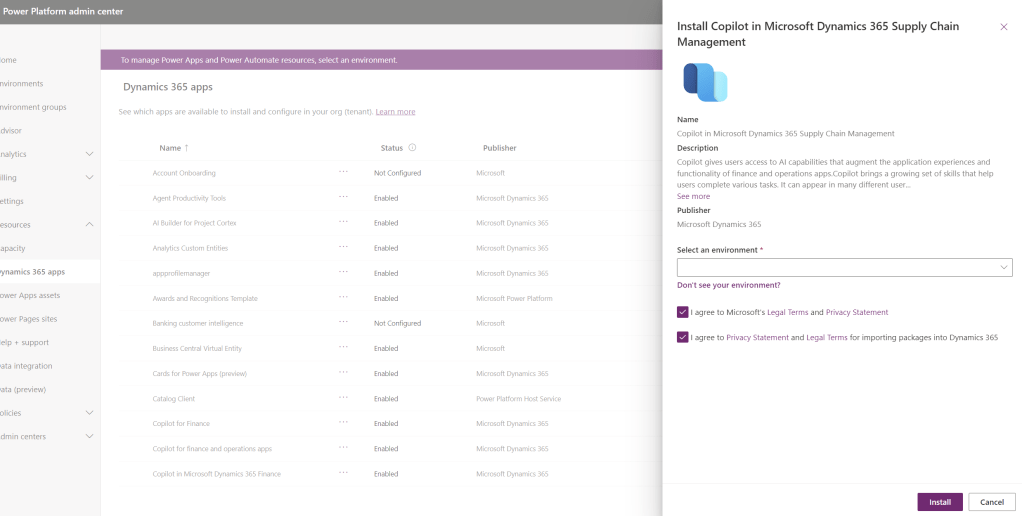
Monitor the installation status under the Dynamics 365 apps.

Step 4
Enable AIB Roles from Users in Power Platform admin center. (Environments > Settings > Users )
Note : Make sure you do this step 4 after completing step 3 otherwise it will not allow for this operation and it will be timed out.
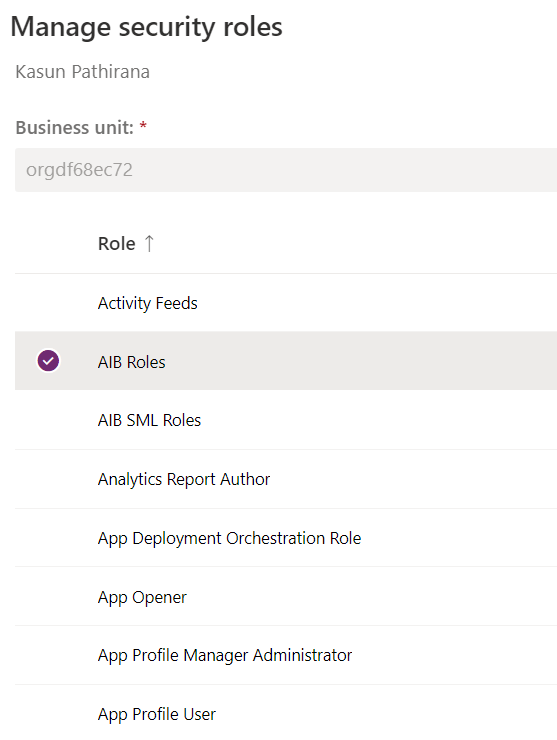
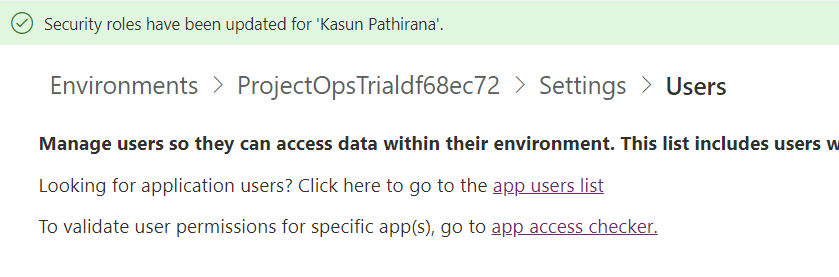
Once added successfully then the following message will appear.
Step 5
Enable feature User experience for Copilot in Finance and Operations from feature management workspace.
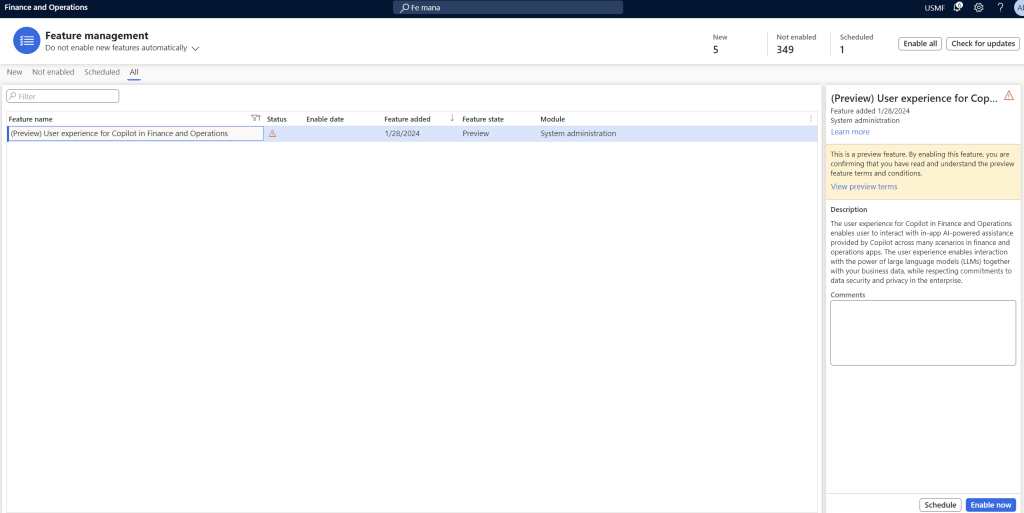
Once enable the feature you can see the copilot icon appearing near the notifications icon.

When you click this icon then sidecar

Let us see Copilot generative help and guidance with Copilot in action in another post.
Official Microsoft documentation used for the above blog.
https://learn.microsoft.com/en-us/dynamics365/fin-ops-core/dev-itpro/copilot/enable-copilot
Note : These steps may change in future so please refer to official documents if there is any change.
Thanks for reading this blog and let’s meet with another blog soon !

 d365bits.com