
When you navigate to the dashboard in D365 FO which gives you a great starting point to start your daily work. In your left side of the screen you could see “Work Items Assigned to me” and this section you would see workflow’s which are assigned to you. But for an example if you are part of multiple workflows it is hard to identify specific workflow item which you should give the priority and attend it immediately. It is a good approach that you would optimize the work item subject text as per the business need in order to give a better visibility to the users.
Let us look at an example and see how we can optimize this. Below is an example you can see Vendor Invoices have came in for approval but there could be specific order you would need to attend quickly but by looking at below it is not possible to know which one is the record you are looking for to approve first.
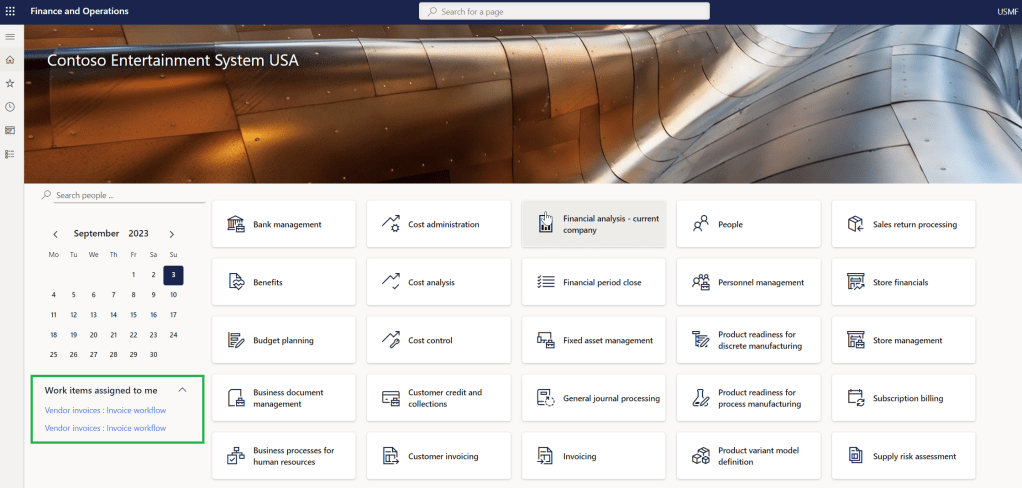
- In this scenario we need to change the Vendor Invoice Workflow. Let’s navigate to Accounts Payable workflows.
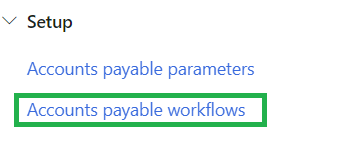
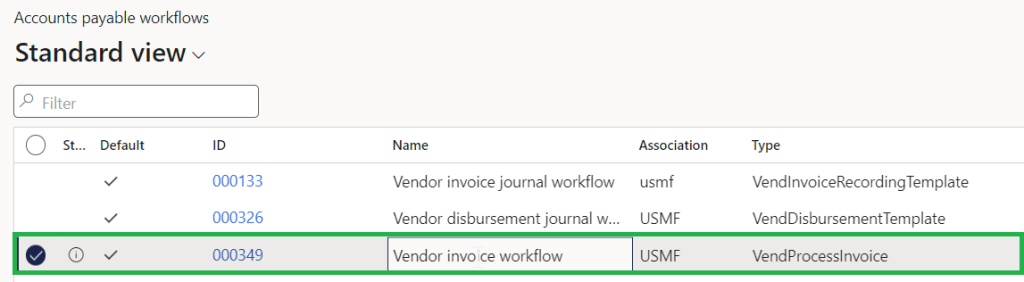
2. Click ID and then open the workflow.

3. Change the Work Item Subject and Work Item Instructions to meaningful values by using the insert placeholder and select what is required for the business and which will help the user to identify the Vendor Invoice workflow.
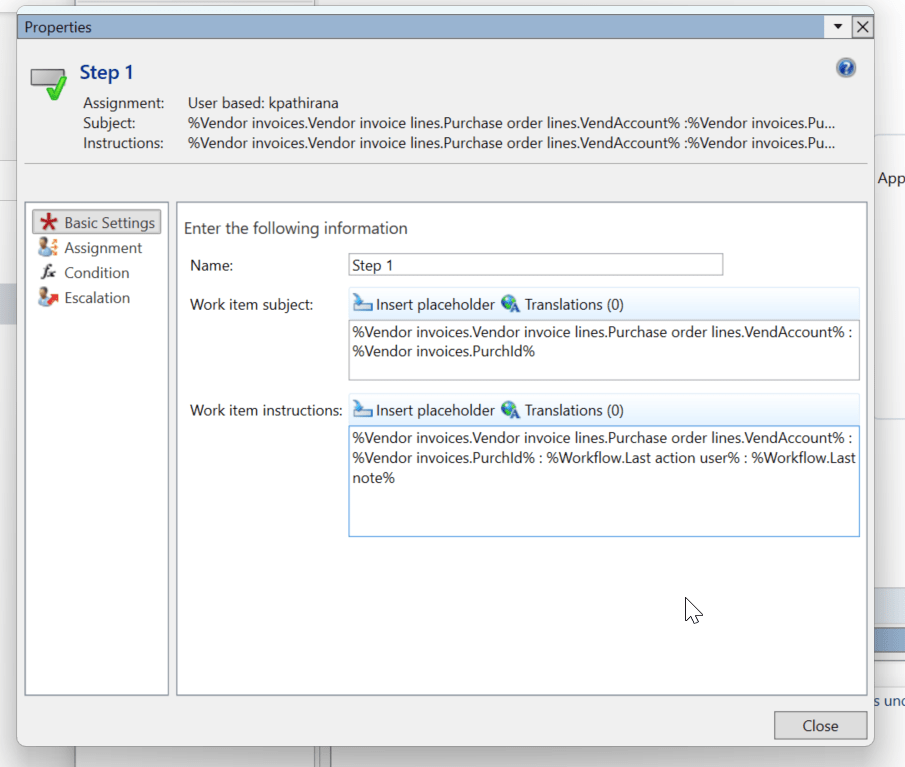
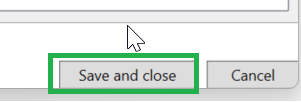
Save and close the changes.
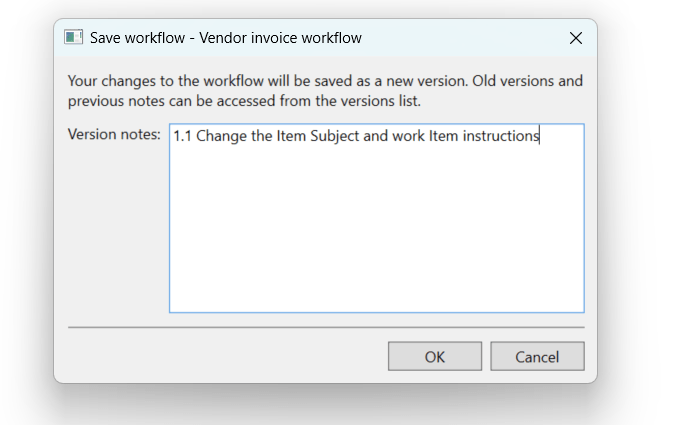
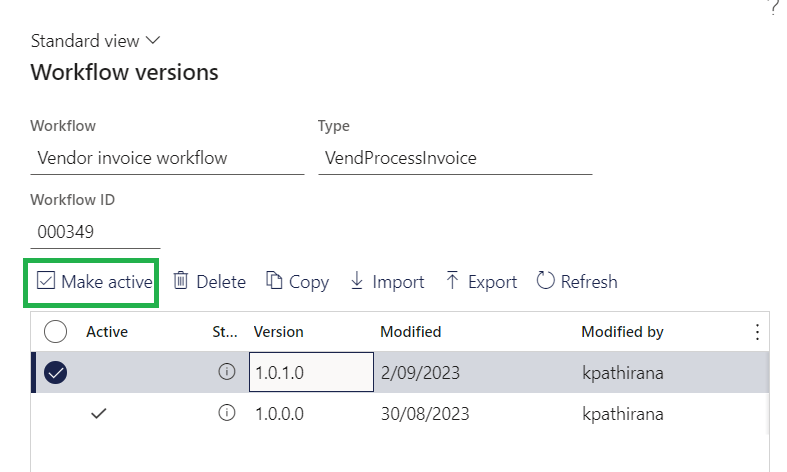
Make the new version active.
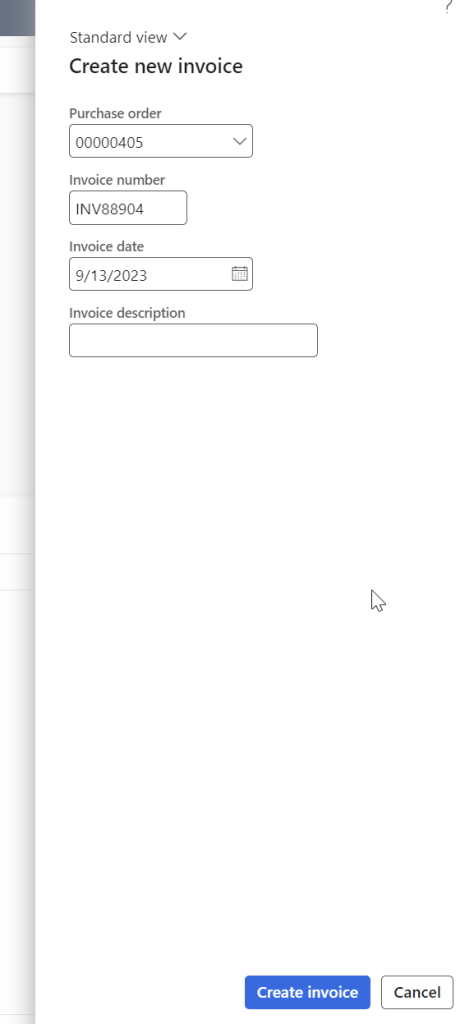
4. Let’s test this by using create new Invoice from Vendor Portal (External User will create this)
If you would like to know more about this process visit my previous blog using below post.
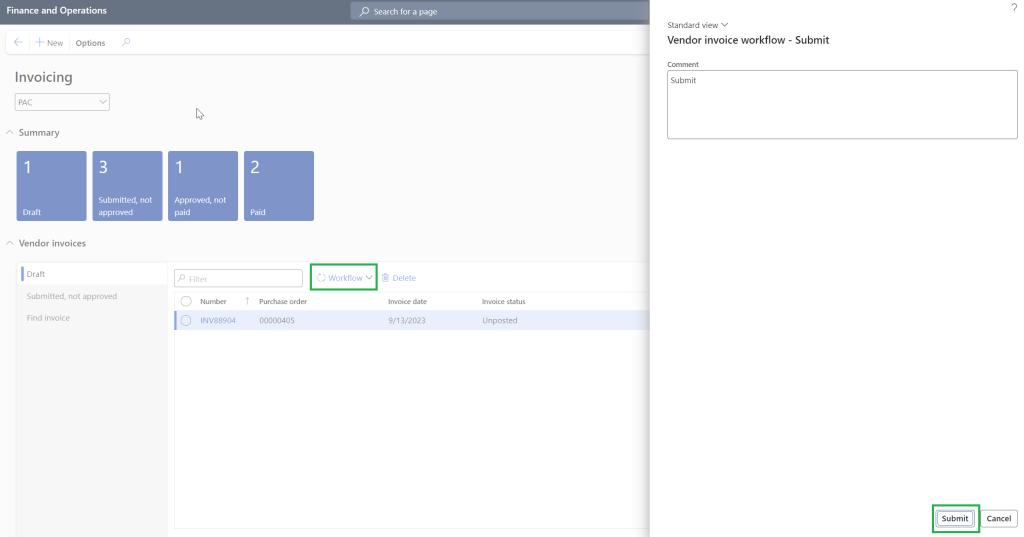
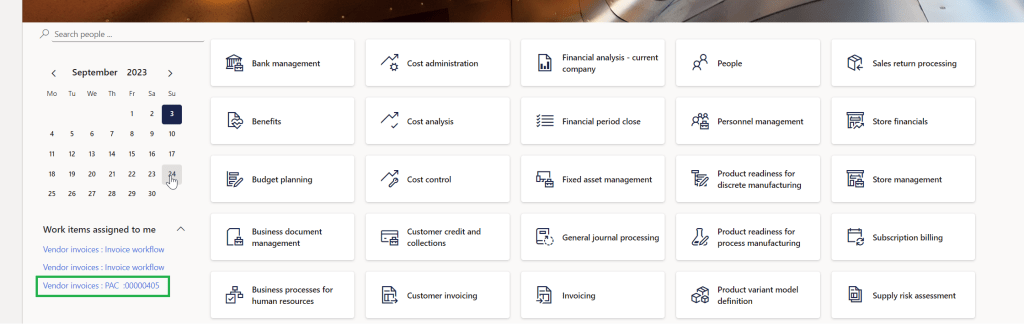
5. Now you can see that “work item subject” appears under “work Items assigned me” is more meaningful. Also you can see the vendor and the Purchase Order so if you already know the Purchase Order you are looking for to approve then you can do CTRL+F and find by the PO faster.
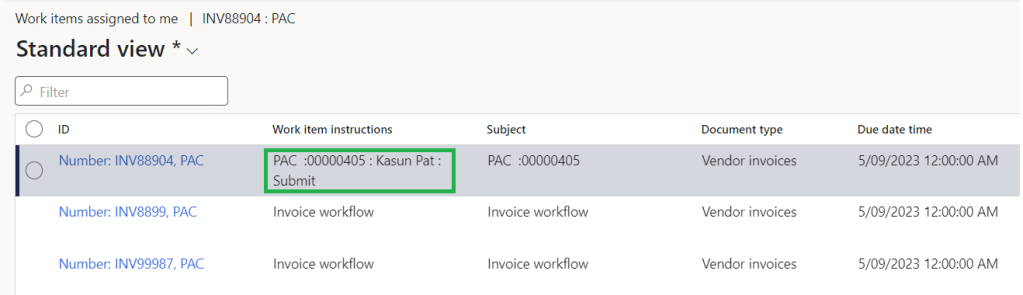
When you click the record you can also see that work item instruction is meaningful as it shows which user does the last action and also what is the last note entered as well.
Thanks for reading this blog post. Will meet you again with the next post.

 d365bits.com