
The Vendor collaboration module in D365FO allows vendors to collaborate with external vendors without EDI integration, enabling them to access purchase orders, invoices, consignment inventory, and requests for quotations. Enabling specific vendors and defining information visibility are essential steps for successful vendor collaboration. As part of this blog we will look at how the external vendor can create invoices via vendor collaboration.
External vendor should have been gone through the external vendor provisioning workflow approval and the user has been created in the D365 FO as a user and to access vendor collaboration invoice features the external user should have the vendor contact (external) rights. (I would cover in future blog on how to provision vendor user)


Also make sure you have a Vendor Invoice Workflow created as well.

Let’s look at how this process would look like in vendor collaboration module.
- Create a Purchase Order and this will be done by the internal user in the purchasing team.
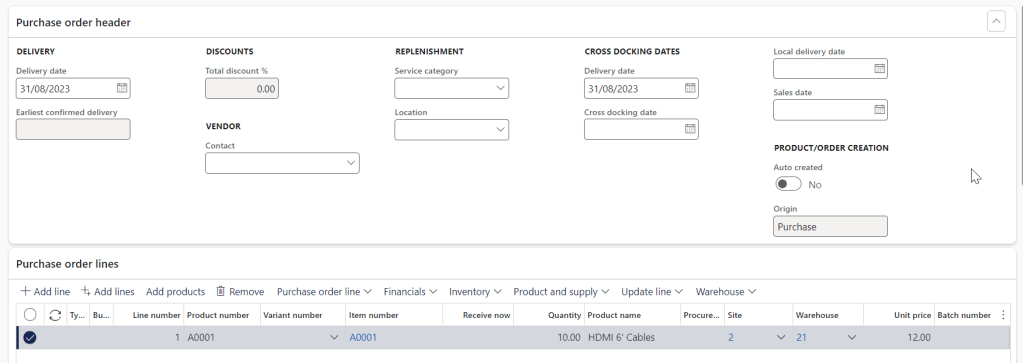
2. Click Send for confirmation and then click ok. This will make sure that this will push to external vendor for review.

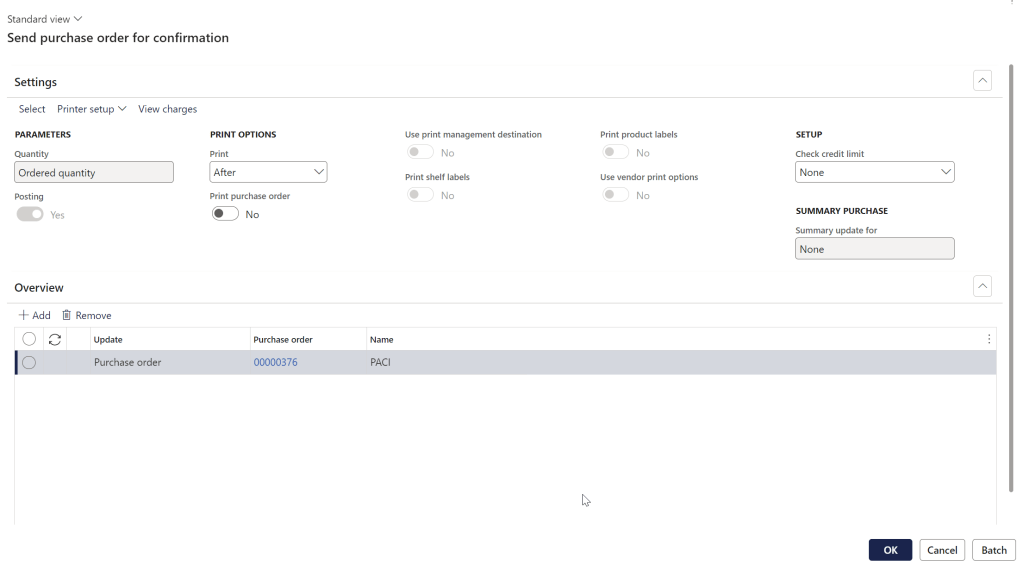
Then it will process the operation as shown below.

This will also show under in external review requires action from the vendor. Also the PO approval status will be in “in external review”.

3. When external vendor login to the vendor portal user can see this new PO appears in the portal under purchase orders for review area.

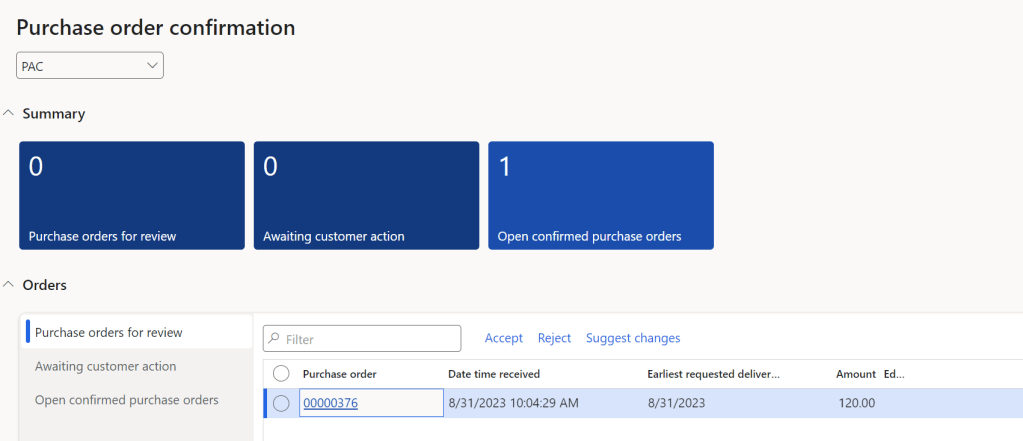
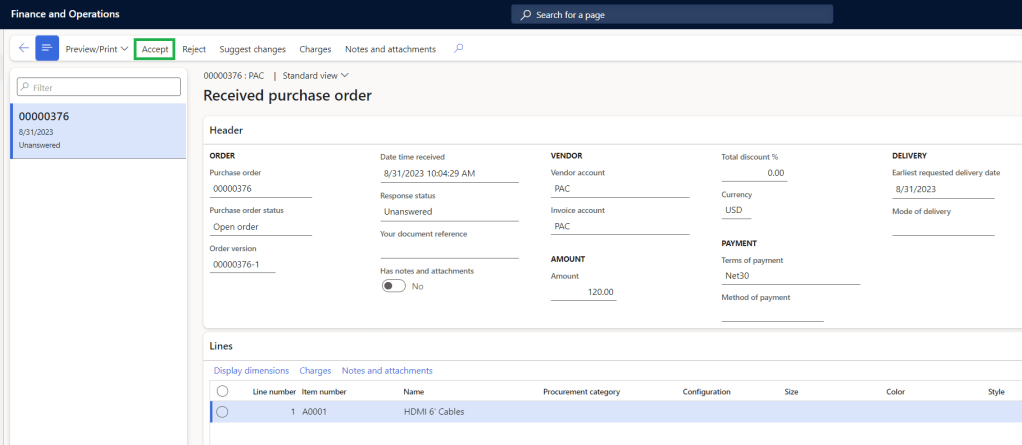
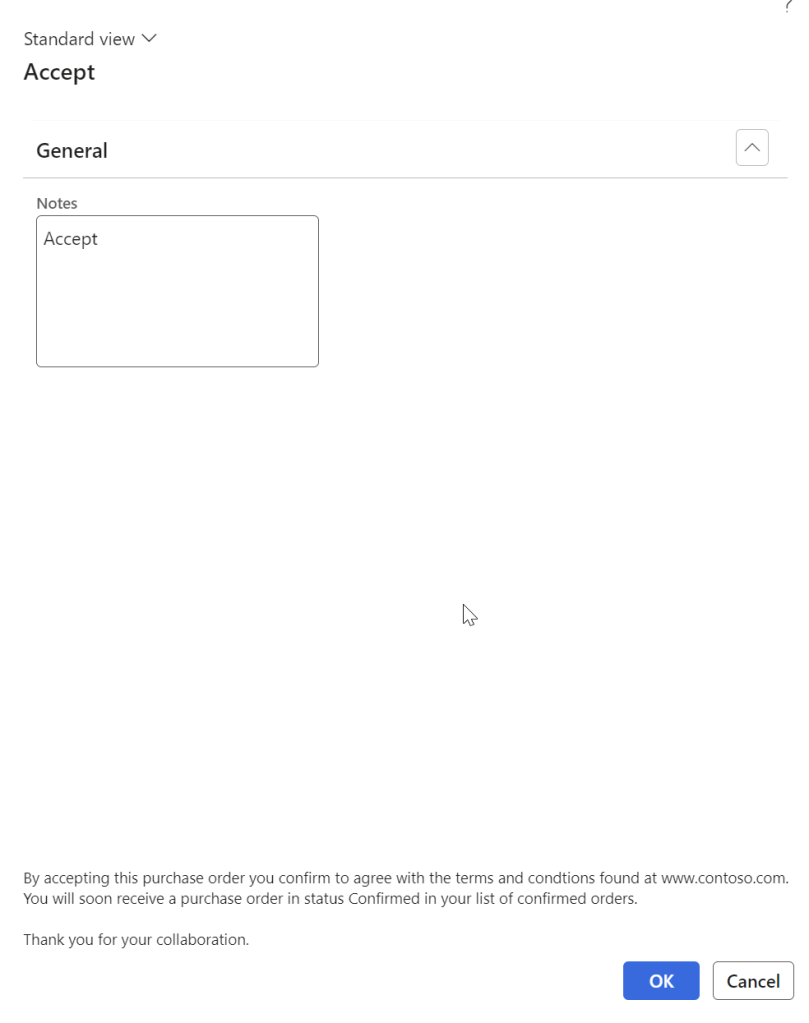
4. Then external vendor can review and accept/reject/suggest changes. In this scenario I accepted the changes and then enter a note and then click ok.
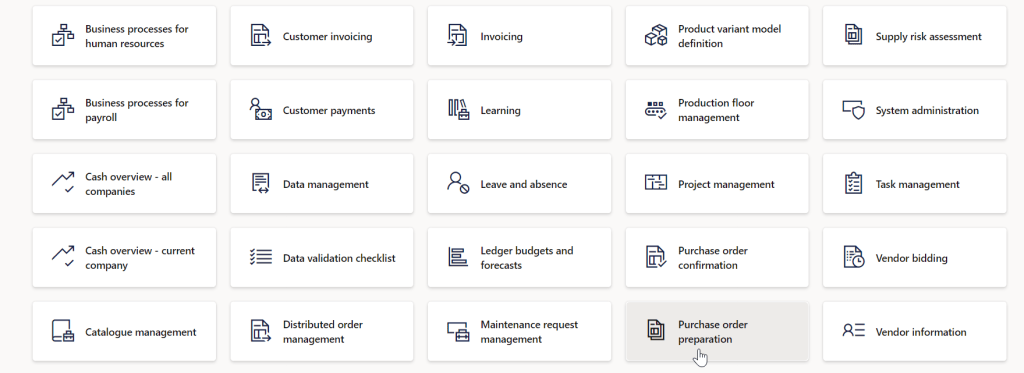
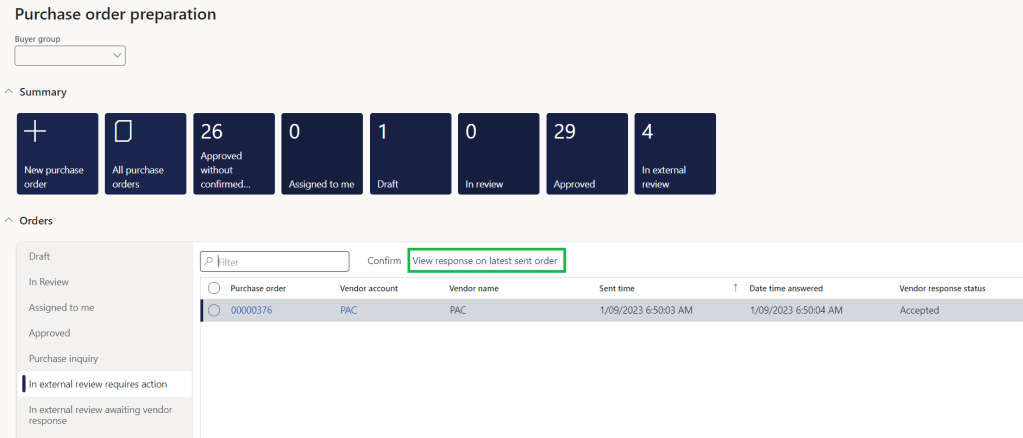
5. Then Internal user from the procurement team logs into the Purchase Order Preparation workspace they will see that under the "in external review requires action".
Proceed to click view confirm or view response on last sent order. If there is no Purchase PO update similar to my scenario then purchasing team can confirm the PO.
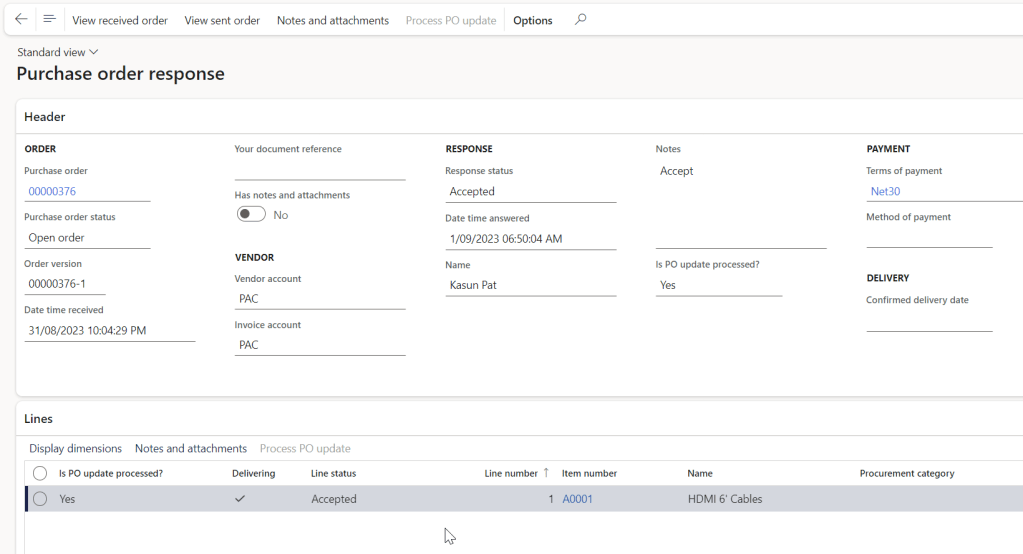
Proceed to Confirm PO. You can do the same on confirmation and checking the response from PO screen.

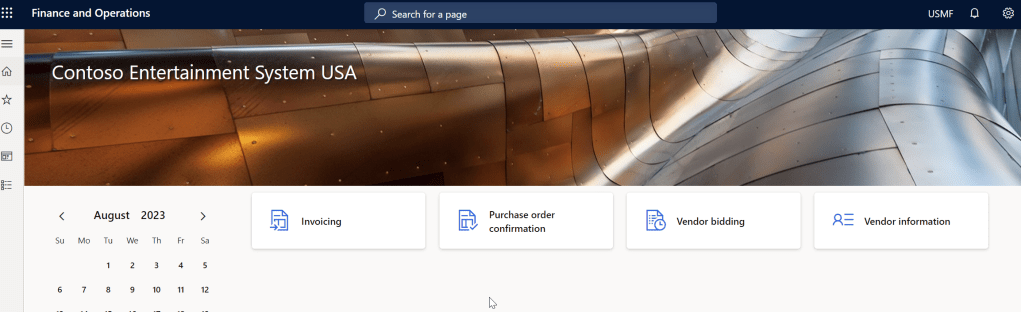
6. Let’s assume that the goods are delivered. Then external vendor will go to the Invoicing workspace and then create new invoice record as shown below.

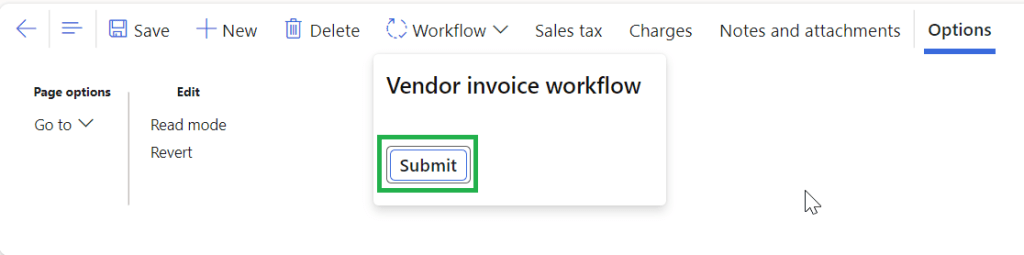
Click workflow.

Then Submit the Invoice workflow.
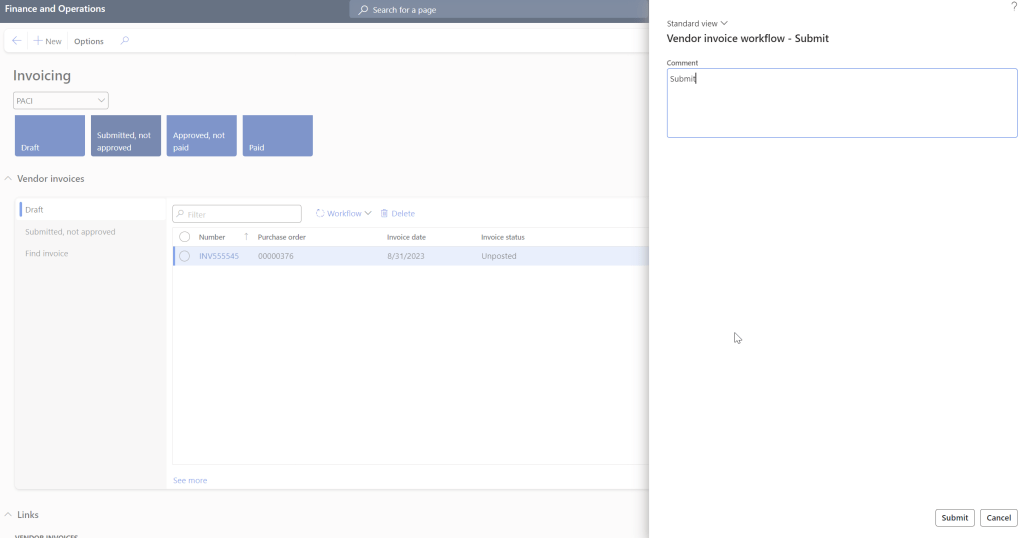
Also you can go to Vendor Invoices > Draft and then submit the workflow.
7. Once the Invoice been submitted then you would be able to see in the PO under Pending Invoices.

Click Edit.
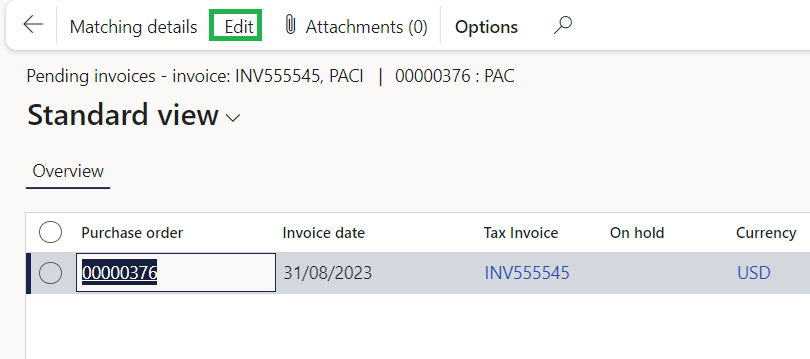
Then the Internal procurement team can Approve/Reject the Invoice workflow. Then perform the update match status and post the Invoice as you would do normally.

Thanks for reading this blog post. Will meet you again with the next post.

 d365bits.com
One thought on “How does vendor collaboration module in D365 FO empower an external vendor to create a pending invoice?”