
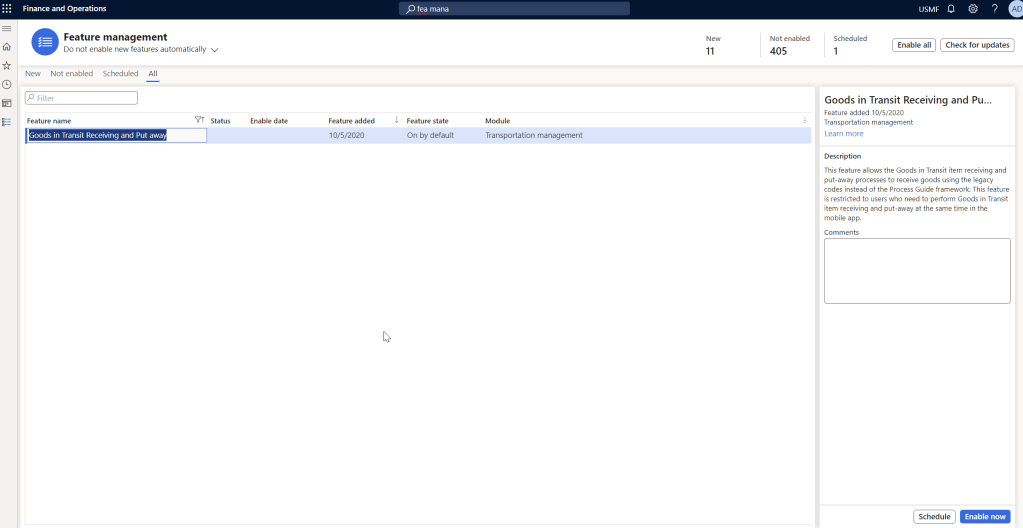
I will be discussing feature “Goods in Transit Receiving and Put away” in this blog. With this you can do the receiving and putaway using one single mobile device menu.
- Enable the feature “Goods in Transit Receiving and Put away” in feature management make sure you enable this in a testing environment and thoroughly test it before enable in the production environment.
2. Go to the Mobile Device Menu item as shown below.
Select the work creation process as “Goods in transit item receiving and put away” and in below I have also enabled the “Enable shipping container complete” options as well since this is quite useful to be handled via WHS mobile app.

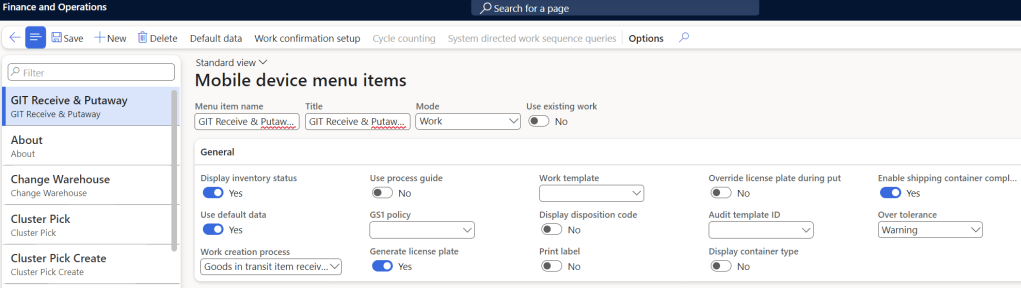
3. Enable this in “Mobile Device Menus” as shown below.

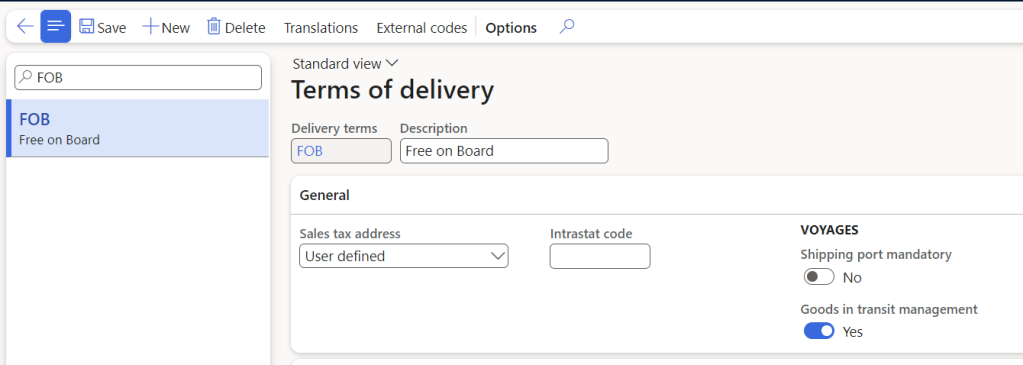
4. Let’s create a Purchase Order and make sure the Terms of delivery enabled for “Goods in Transit Management”. Add the Purchase Order line Items , qty and confirm the Purchase Order. Also make sure it has been mapped with the delivery terms which has enabled “Goods in transit management”.


5. Create a voyage record and select the PO lines to the staging list.
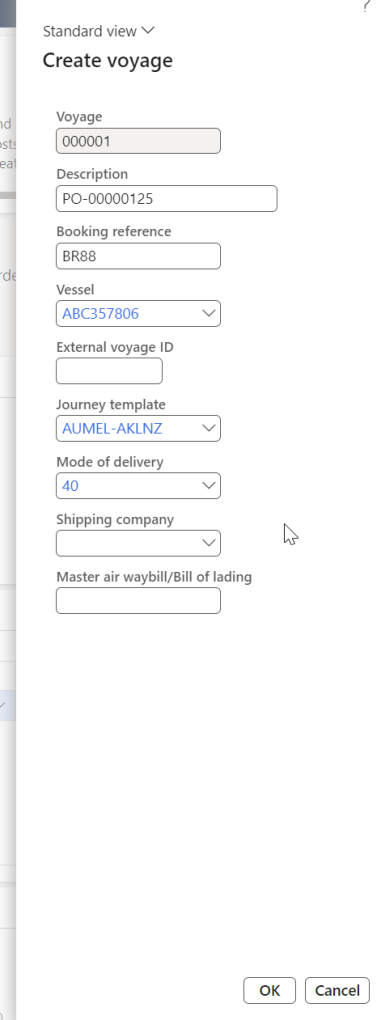

Then click view staging list and add to new shipping container.
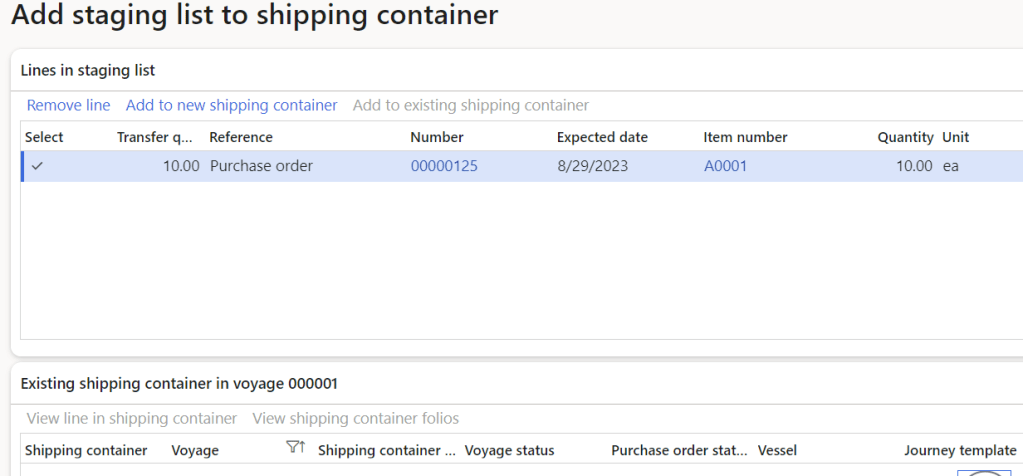
Create shipping container record.

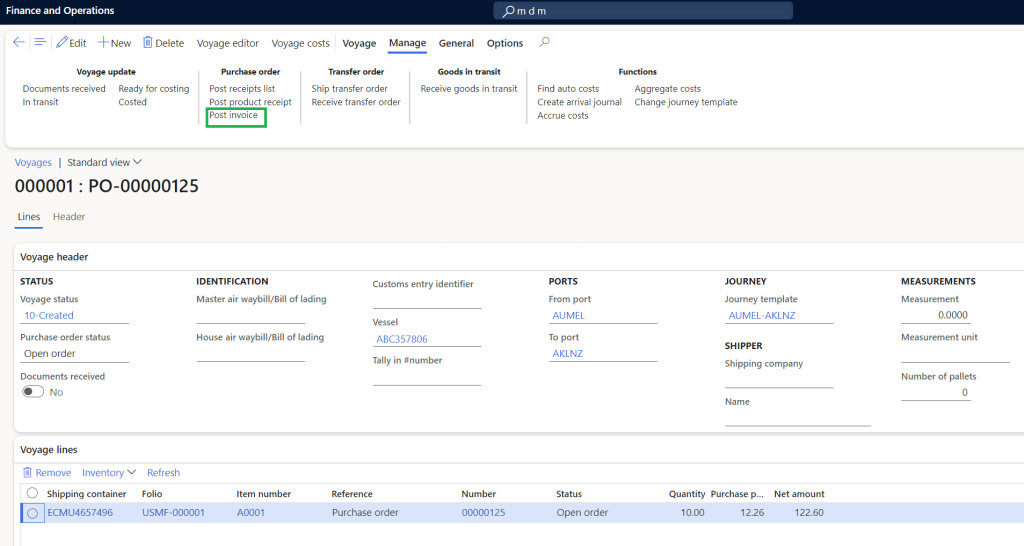
Navigate to the respective voyage record.

6. Post the Invoice from Voyage. This is because we are doing the GIT process for this particular scenario.
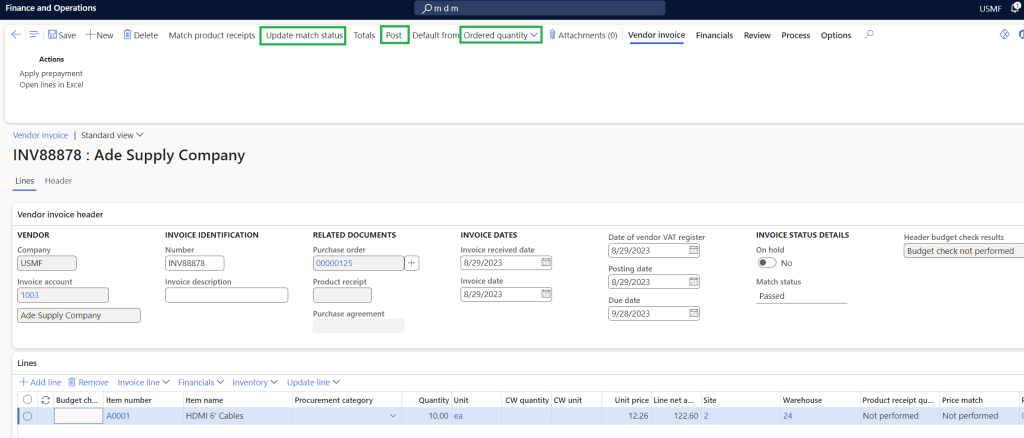
Update Invoice number , Invoice dates and then make sure ordered quantity is selected. Then perform the update match status and then post.
7. Got to the warehouse mobile device. Click GIT Receive & Putaway. (I’m using the emulator to show this step)
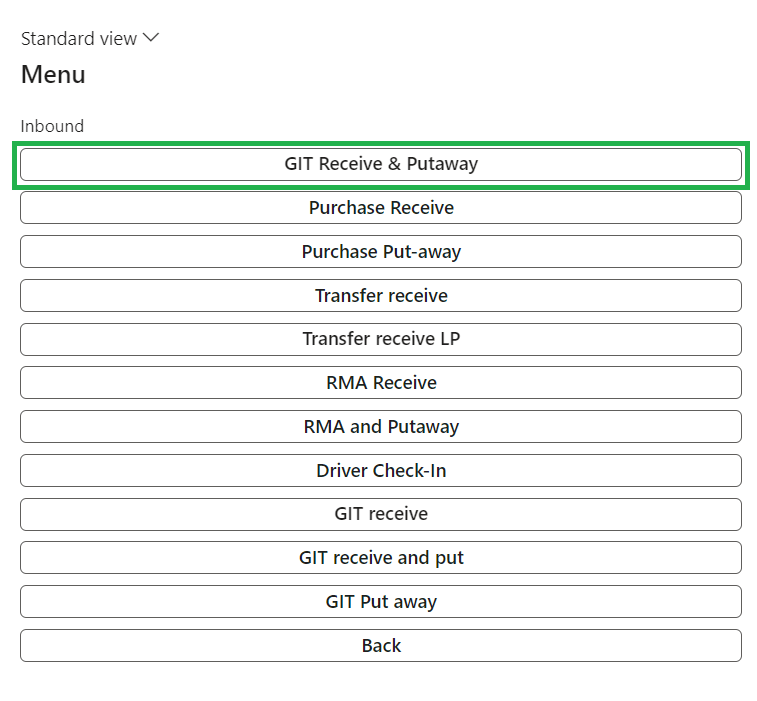
Enter/scan Voyage, Shipping container, Item, qty and proceed to click ok.
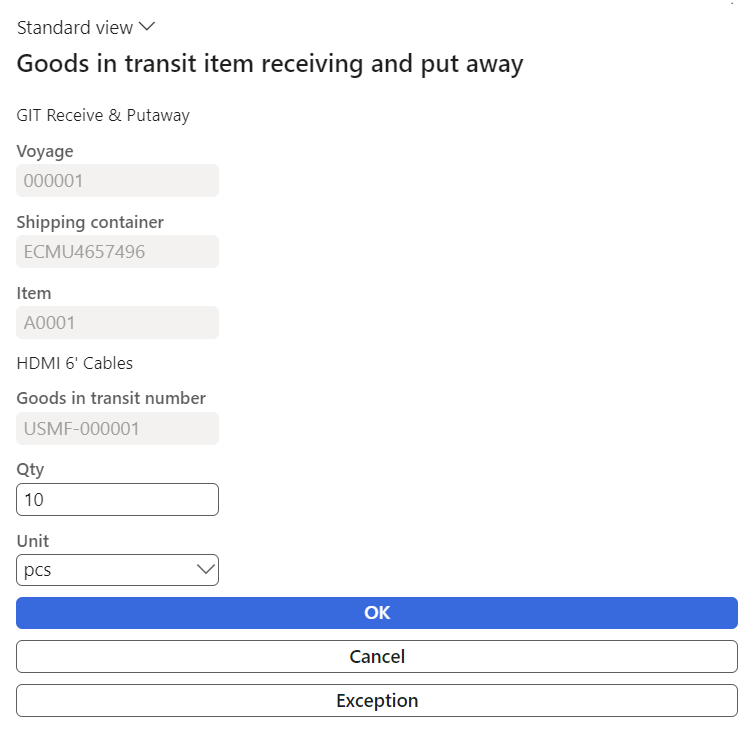
This is directly performing the putaway to the location based on location directive action and work template. Click ok in this step.

Below is the completed work record.

Thanks for reading this blog post. Will meet you again with the next post.

 d365bits.com