
Introduction
Order events feature in D365 SCM under the module sales and marketing. This is useful feature for the businesses to monitor/check/analyze sales order history to check in certain scenarios for auditing purposes. Using this feature businesses can track which users perform certain actions such as for an example Sales Order creation, cancelling, deleting, changing pricing and etc..
Configure Sales order events
Scenario we are going to discuss in this blog is that USMF legal entity sales team requires to track specific user groups for order creation , cancellation and delete of sales order. Also requires to track and sales line price modifications and requested receipt or ship date changes in sales order line. Period of validity should be from 1st of August 2023.
Let’s have a look at how we could setup the above scenario.
- Go to the Order event setup in Sales and Marketing > Setup > Order events.
- This is using the similar concept as you would find in other parts of the D365 FO Table/Group/All and in this case we will select Group for our scenario. Also select respective user group under the user relation field.
- Enable following check boxes in the order event setup under sales order tab Create Sales Order , Cancel Sales Order and Delete Sales Order.
- Select start date as 1st of August 2023.
- Enable Sales line price override and Modify requested receipt or ship date.

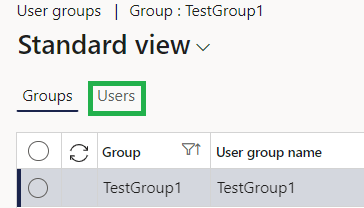
6. Select the required users to the respective user group selected and in this scenario it is “TestGroup1” as shown below.

Sales Order Header Order Event in action
1. Create Sales Order and then add in one sales line record as Item A0001 Qty 2 and then click order events from view under sales order.

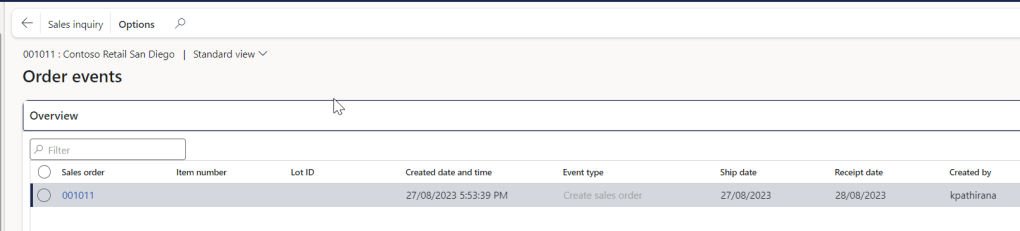
2. Order events in sales order header record is created as below.
Sales Order lines Order Event in action
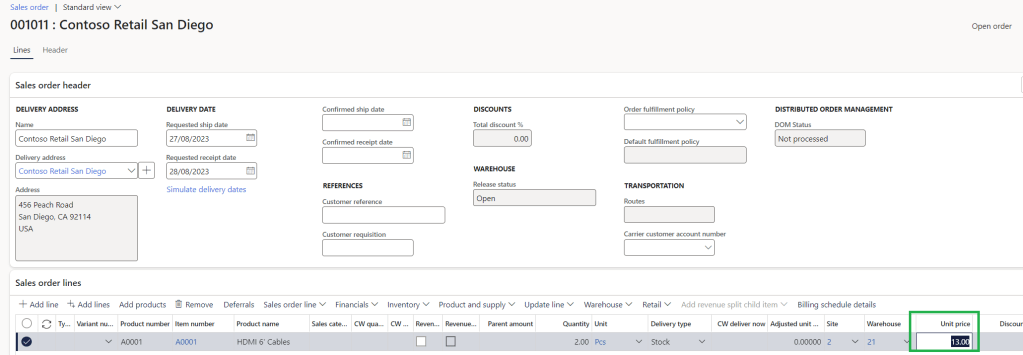
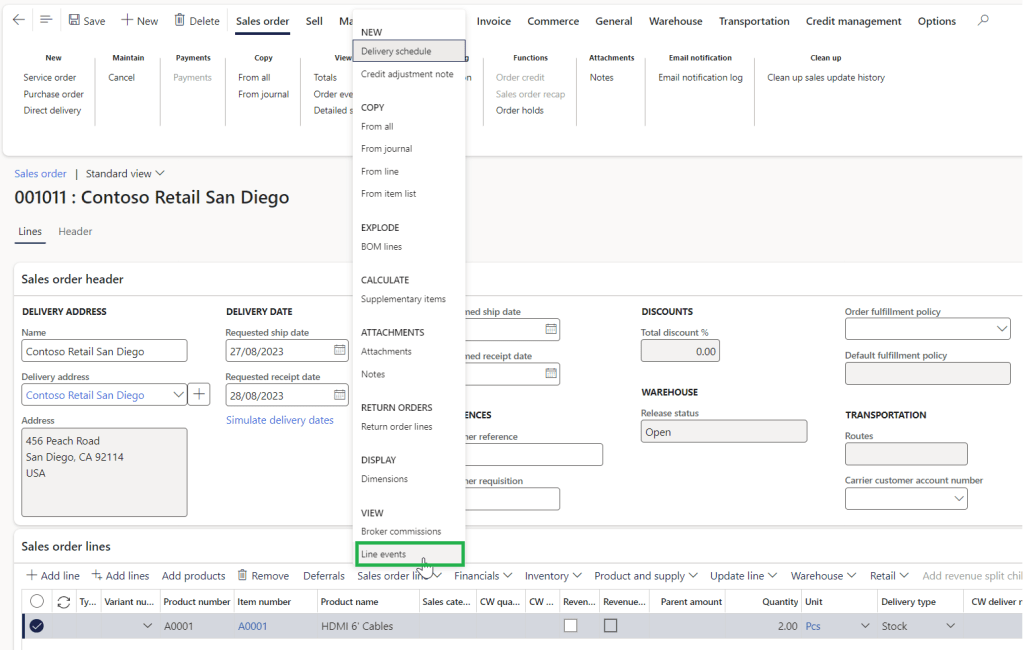
1. Change Sales Price in Sales Order line.
2. Check the order events in sales order line under sales order line > View > Line events.
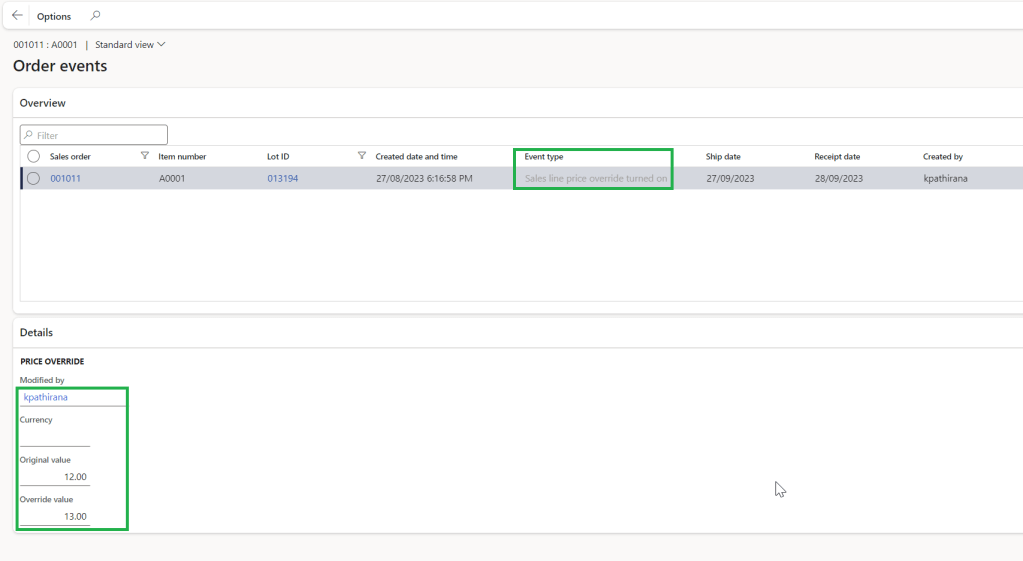
3. Sales order events line shows the original value and the override value.
How to check in the Order Event Inquiry Screen
This screen can be used to find all the order events records created.
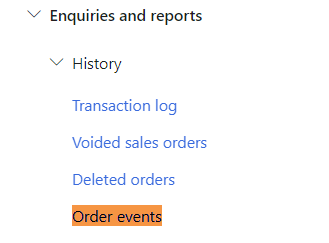
You can access this inquiry screen by navigating to Sales and marketing > Enquiries and reports > order events
We could see our transactions created in the inquiry screen and also it gives the event type and we could filter by different event types too.

Run periodic job to clean
Periodic job can be run for the historical data cleanup for the system performance. So it is always best to use for the specific scenarios and do not just enable all the tracking fields if it’s not required to be tracked. Also make sure you manage this order event feature properly without affecting the performance of the system.
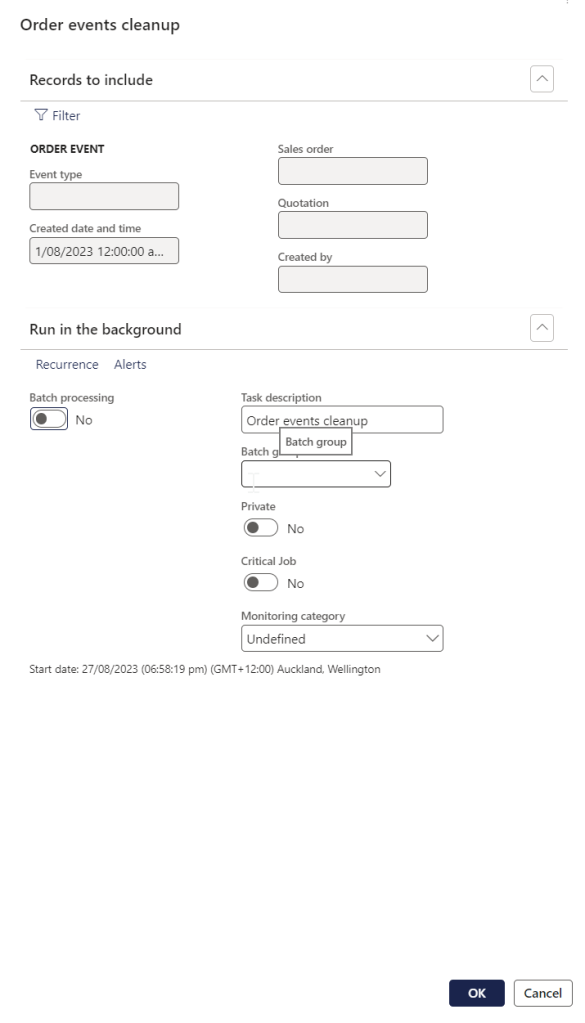
You can access this inquiry screen by navigating to Sales and marketing > Periodic tasks > Clean up > Order events cleanup

You could use created date and time and other filters to select the records which needs to be deleted.
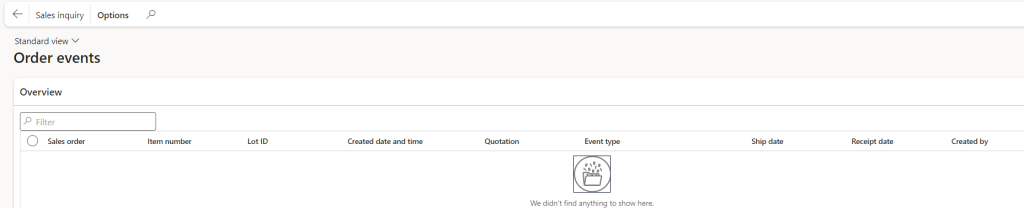
Once deleted the specific records this is how it will show under order events.
Stay tuned for the next blog post !

 d365bits.com